Portfolio Management
Started 2 months ago by Thulo Support Team in Thulo Sites, Content Creation and Editing
The Portfolio section allows you to add and manage projects that you want to display on your website.
Body
Portfolio Management
The Portfolio section allows you to add and manage projects that you want to display on your website. You can add project information, assign categories, upload a project image and provide additional files that website visitors can download.
Follow the steps below to create and publish a new portfolio project.
Step 1: Open the Portfolio Section
-
Log in to your Back Office.
-
From the main menu, click Website.
-
Under the Content Management section, you will find options such as Pages, Blogs, Media, and Portfolio. Click Portfolio.
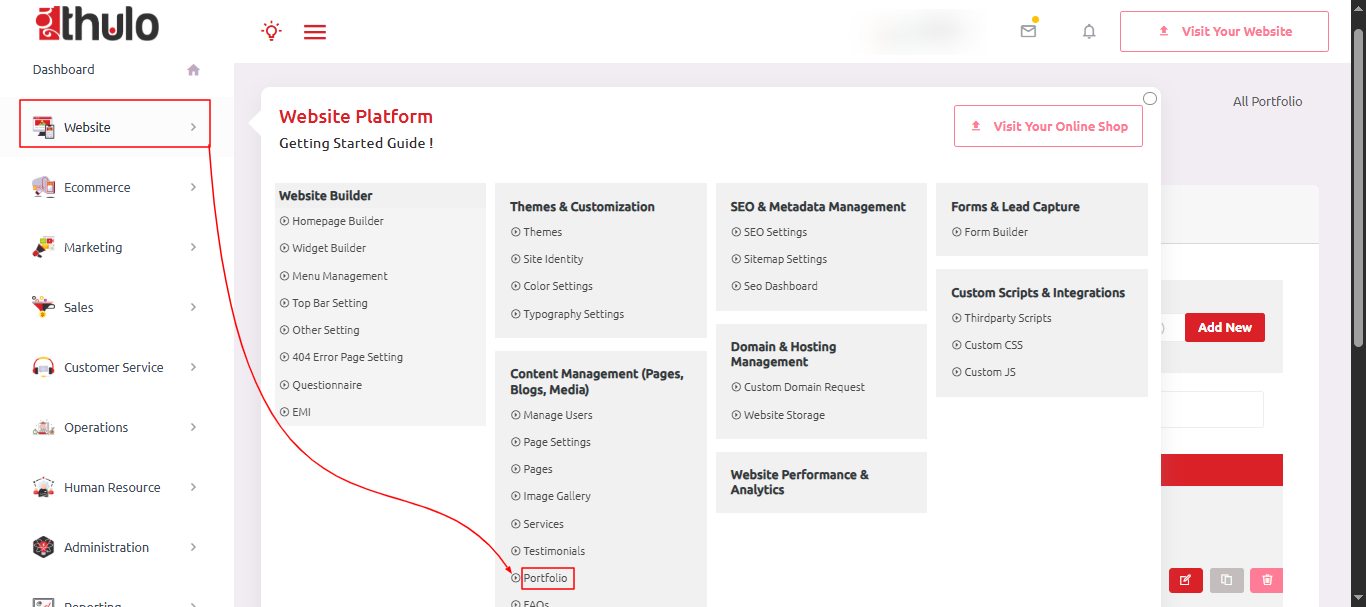
You will be taken to the All Portfolio page, where you can view all existing portfolio projects and add new ones.

Step 2: Create a Portfolio Category
Before adding a portfolio project, check whether the appropriate category already exists. Categories help you organize your portfolio projects into different groups.

To Create a New Category:
-
Open Portfolio.
-
Click the Category menu.
-
Click Add New Category.
-
Enter the Category Title.
-
Click Save.

Once the category is saved, you can select it when creating your portfolio project.
Note: If the required category already exists, you do not need to create it again. You can directly select the existing category while adding the portfolio.
Step 3: Add a New Portfolio
Once the required category is available:
- Go to the All Portfolio section.
- Click Add New Portfolio.

-
The portfolio form will open.
-
Fill in the required project information and upload the necessary files.
Project information
- Portfolio Title: Enter the name or title of the project.
- Portfolio Details: Add detailed information about the project.
- Category: On the right-hand side of the form, select the appropriate Category for the project.
- Client Details: Enter the available Client Details in the provided field.
- Upload Portfolio Image: Upload an appropriate image to represent the project.
- Upload Portfolio File: If you want to provide additional project information, use the Upload Portfolio File option.
Website visitors will be able to download the uploaded file from the portfolio page if the download option is available on the website.
- Publish the Portfolio: After completing all the required information, set the Status to Publish and click Submit.
Once submitted successfully, the portfolio project will be created and will be ready to display on the website.

Quick Workflow
Back Office → Website → Content Management → Portfolio → Category → Add Portfolio → Fill in Details → Select Category → Upload Image/File → Set Status to Publish → Submit → Clear Cache → Check Website
Useful Tips
Each portfolio project has an Action section where you can perform different actions to view, update, or refresh the portfolio.
1. 👁️ Eye Icon – View Portfolio
Use the Eye icon (View) to check the portfolio and see how it is currently displayed on the website.
-
In the Action section, click the Eye icon (View).
-
The portfolio will open.
-
Review the project details and check how the portfolio is displayed on the website.

2. 🔄 Loading Icon – Clear Cache
The website uses cached content to display portfolio information. After creating or updating a portfolio, you should clear the cache to make sure the latest changes are displayed on the website.
-
In the Action section, click the Loading/Cache icon.
-
The cache will be cleared.
-
Refresh the website and check the portfolio to confirm that the latest changes are visible.

Important: If your updated content is not visible on the website, clear the cache and refresh the page before checking again.
3. ✏️ Pencil Icon – Update Portfolio
Use the Pencil icon (Edit) to update or modify an existing portfolio project.
-
In the Action section, click the Pencil icon (Edit).
-
The portfolio editing form will open.
-
Update the required information.
-
Review your changes and click Submit to save the updated portfolio.
-
After updating, remember to clear the cache so the latest changes are displayed on the website.

-
No one is replied to this thread yet. Be first to reply!